The Loomwork manual.
Everything in one page, end to end. Read it once at the start; come back when something is unclear.
Getting started
Loomwork is a desktop application that runs entirely on your Mac. There is no account required, no online setup, no “create a workspace” ceremony. Download the .dmg, drag the app to Applications, open it, and write.
Download & install
- Click Download for Mac — the .dmg file lands in your Downloads folder.
- Open the .dmg and drag Loomwork into Applications.
- Launch from Applications or Spotlight. macOS may ask you to confirm; right-click and choose Open if prompted.
Create your first project
On first launch, Loomwork shows the welcome screen. Choose a project type — Novel, Screenplay, Short Story, Poetry, Memoir, Essay, Journalism, Blog, Technical, or General — and give it a name. The application creates a folder of plain Markdown in ~/Documents/Loomwork. That folder is the project. Move it, back it up, copy it — like any document.

The interface
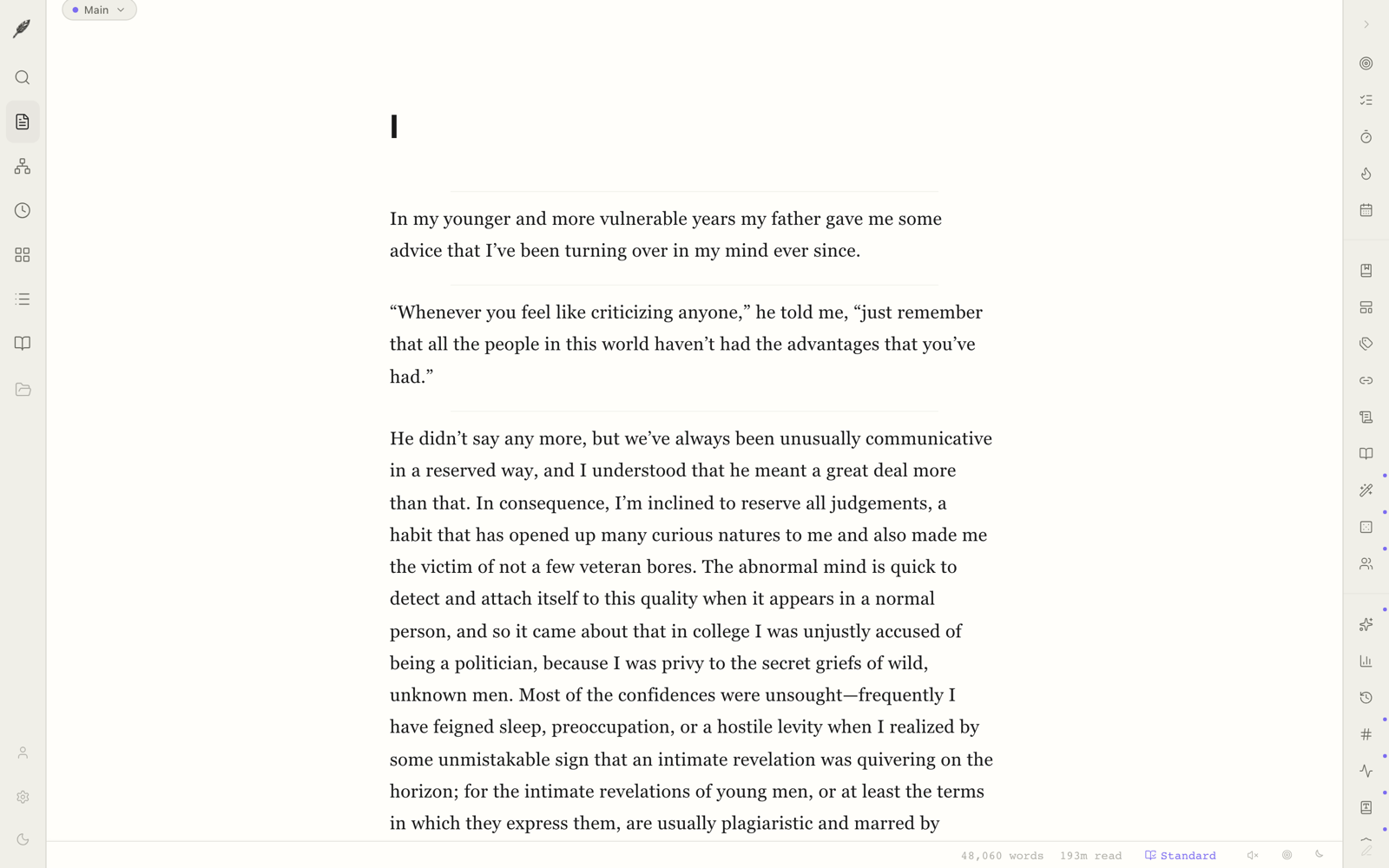
Loomwork has three regions: the navigation rail on the left (binder, search, intelligence), the page in the centre (where the writing happens), and the context panel on the right (entities, comments, threads). Each can be hidden with ⌘\, ⌘/, and ⌘. respectively.
Writing your first paragraph
Click anywhere on the empty page and start typing. Press ↵ to begin a new block. Type / to open the slash menu; type # followed by a space to make the block a chapter. Loomwork is block-based: every chapter, scene, paragraph, and note is a discrete block with its own type and metadata. The output on disk is plain Markdown.
The page
The page is built on TipTap with a custom prose-mirror schema for long-form work. It is keyboard-first, but never modal — everything has a click-equivalent.
Block types
- Chapter — the top-level structural block. Auto-numbered.
- Section — a chapter division.
- Scene — the narrative unit. Splits inside a chapter; exports with scene breaks.
- Prose — standard paragraph.
- Dialogue — for screenplays. Renders centred with character cue.
- Note — an inline annotation. Hidden from manuscript export by default.
- Quote — a block quotation, indented and styled.
- Verse — preserves line breaks for poetry.
Rich text formatting
Loomwork supports the formatting any long-form writer actually needs. Select text and the floating toolbar appears — bold, italic, underline, strikethrough, highlight, headings, links, comments. Every action also has a keyboard shortcut, because moving your hands away from home row breaks the spell.
- ⌘B — Bold
- ⌘I — Italic
- ⌘U — Underline
- ⌘⇧X — Strikethrough
- ⌘⇧H — Highlight
- ⌘K — Add link
- ⌘⇧M — Comment on selection
- ⌘⌥M — Margin note
The slash menu
Type / at the start of any line to open the slash menu. Use ↑ / ↓ to navigate, ↵ to insert. Each item has a numeric shortcut: ⌘1 chapter, ⌘2 scene, ⌘3 dialogue, ⌘4 note.

Splitting and merging
Press ⌘↵ to split a block at the caret. Press ⌫ at the very start of a block to merge it with the one above. Loomwork preserves block type and metadata across splits and merges.
Drag to reorder
Hover a block to reveal its drag handle. Drag a chapter and its scenes follow. Drag a scene out of a chapter and it becomes top-level. The binder view (⌘5) is the easiest place to do this in bulk.
Focus & Zen modes
Focus mode (⌘.) dims everything but the active sentence; the surrounding paragraphs fade to 30% opacity. Zen mode (⌘⇧.) hides all UI chrome — the rail, the panel, the menu bar — until you move the mouse. Together they make even a 4K monitor feel like a single page.
Smart typography
Loomwork upgrades your prose typography on the keystroke. The transformations happen as you type, and can be reverted with ⌘Z like any edit. They are on by default and can be turned off in Settings → Editor → Smart typography.
What gets transformed:
"hello"becomes “hello”'tisbecomes ’tis--becomes —...becomes …(c)becomes ©1/2becomes ½->becomes →
Loomwork knows context: a quote at the end of a word becomes the right kind of curl, a hyphen between digits stays a hyphen. The result is a manuscript that looks the way books look, without you ever opening a special-character menu.
Wiki-link autocomplete
Type [[ anywhere in your prose. Loomwork shows a floating menu of every entity in your manuscript — characters, places, objects, threads, notes — ranked by recency. Type to filter; press ↵ to insert.
Once linked, an entity becomes a navigable reference. Click it to jump to that entity’s detail page. Hover it to see the last three appearances. Mention a character once with the wiki-link, and every subsequent appearance is suggested before you finish their name.
Creating new entities inline
Type [[Aoife|character]] and Loomwork creates a new character entity called “Aoife” on the spot. The pipe-syntax sets the type. Without the pipe, the new entity inherits its type from the surrounding context if Loomwork can guess it; otherwise it’s a generic note.
Renaming an entity
Open the entity’s detail page and edit the name. Every wiki-link in the manuscript updates in place. Old aliases are kept as soft references — useful for nicknames.
Markdown shortcuts
If you’ve typed Markdown for a decade, Loomwork meets you there. At the start of a block, type the shortcut and a space. The block transforms.
#→ Chapter##→ Section###→ Scene>→ Block quote-→ Bullet list1.→ Numbered list---→ Scene break
Inline: *italic*, **bold**, _underline_, and ~~strike~~ work as expected. Loomwork stores the result as semantic formatting, not raw Markdown — the conversion is one-way at the point of typing.
The five rooms
Every Loomwork project has five rooms onto the same manuscript. Switch with ⌘1 through ⌘5. None is a copy or an export; all five are live, all five are editable, and a change in one is instantly visible in the others.
The page ⌘1
The default. A focused page with editorial typography, semantic blocks, and a single column. Where the writing happens.
The network ⌘2
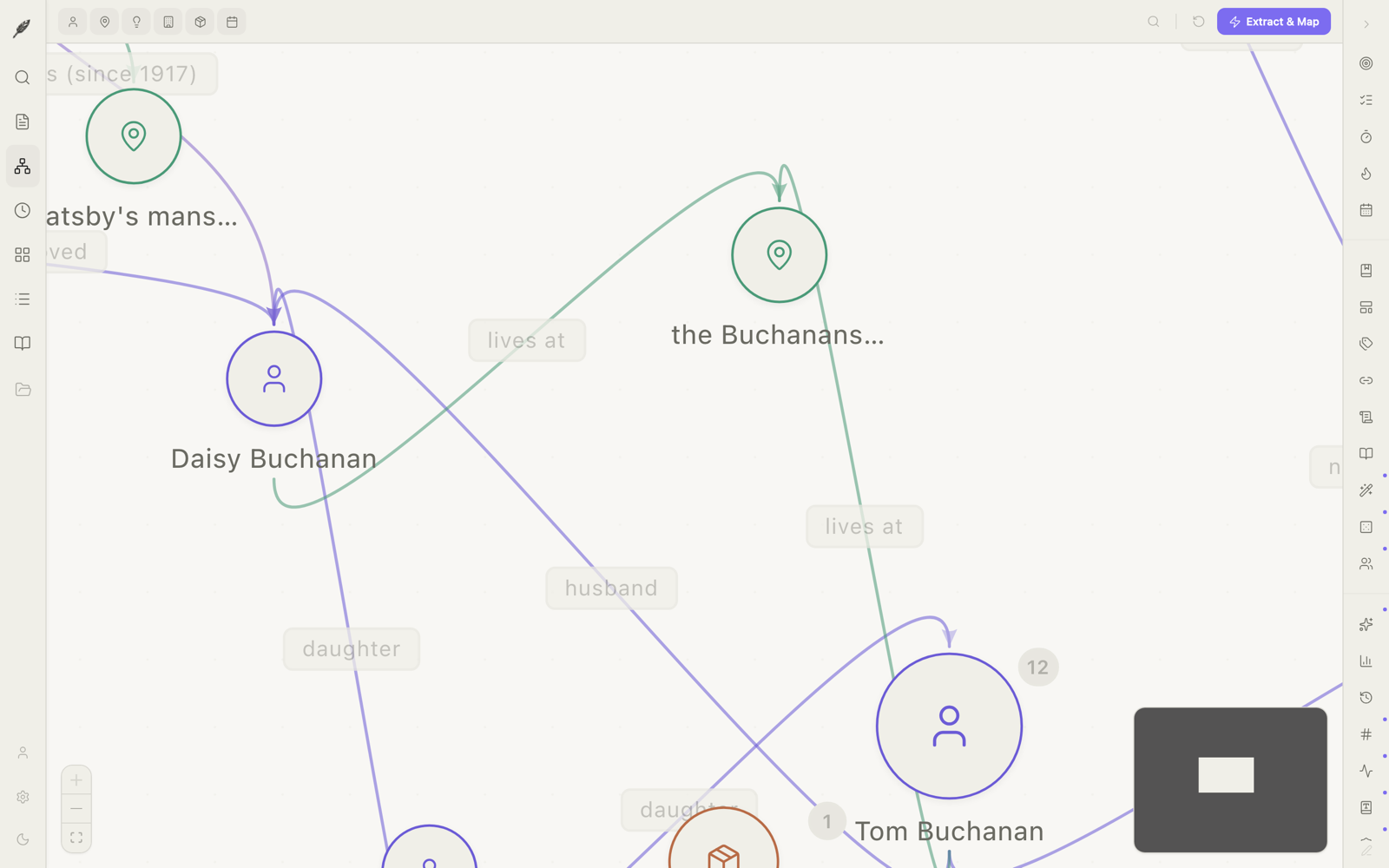
A graph of your characters, places, and threads. Every entity in your manuscript is a node; every relationship written into the prose is an edge. Filter by type, by chapter, by status. Click a node to read every page it appears on.
The chronology ⌘3
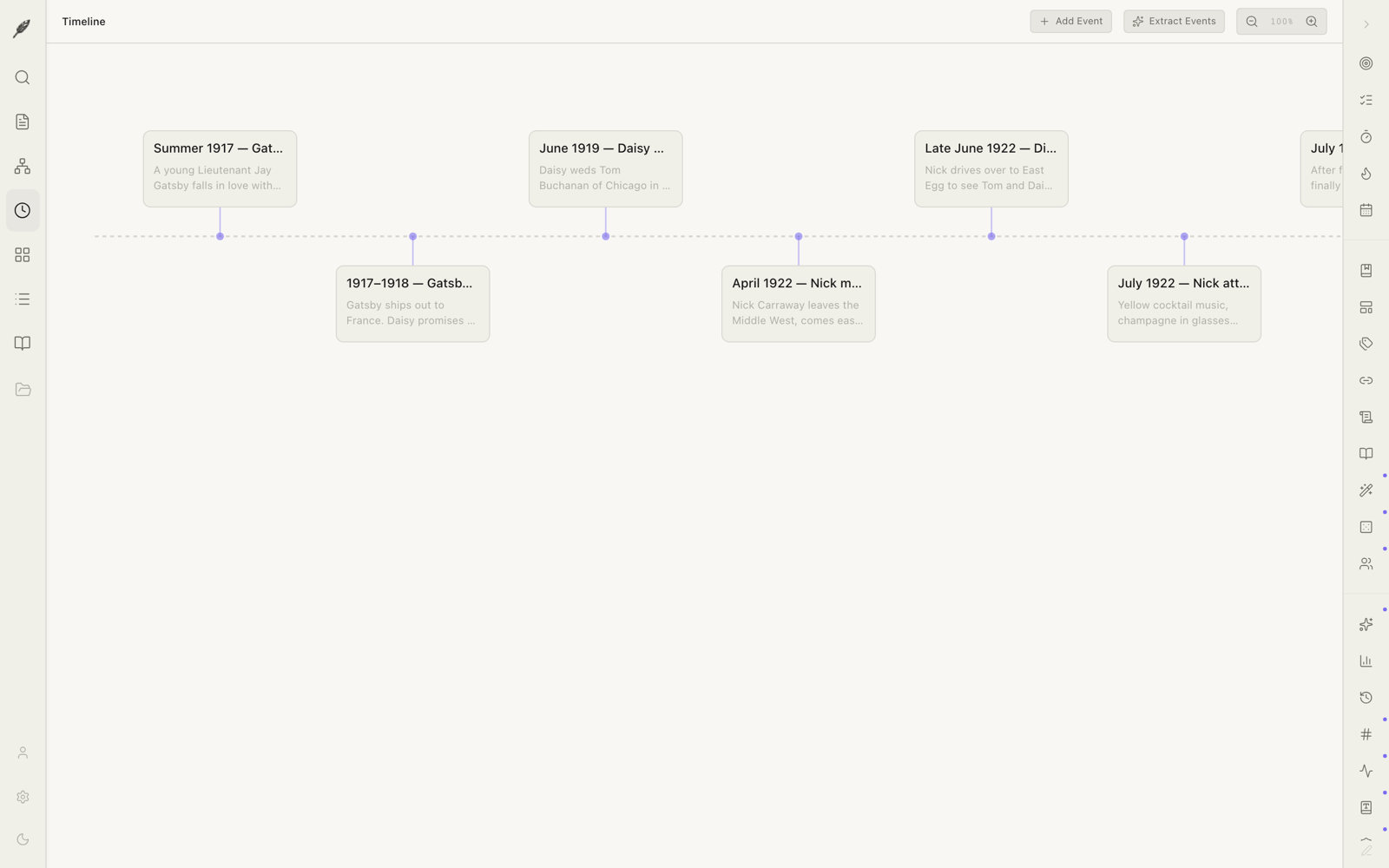
Events extracted from prose, placed in chronological order. Story time vs. narrative time, side by side. Drag events to reorder.
The index cards ⌘4
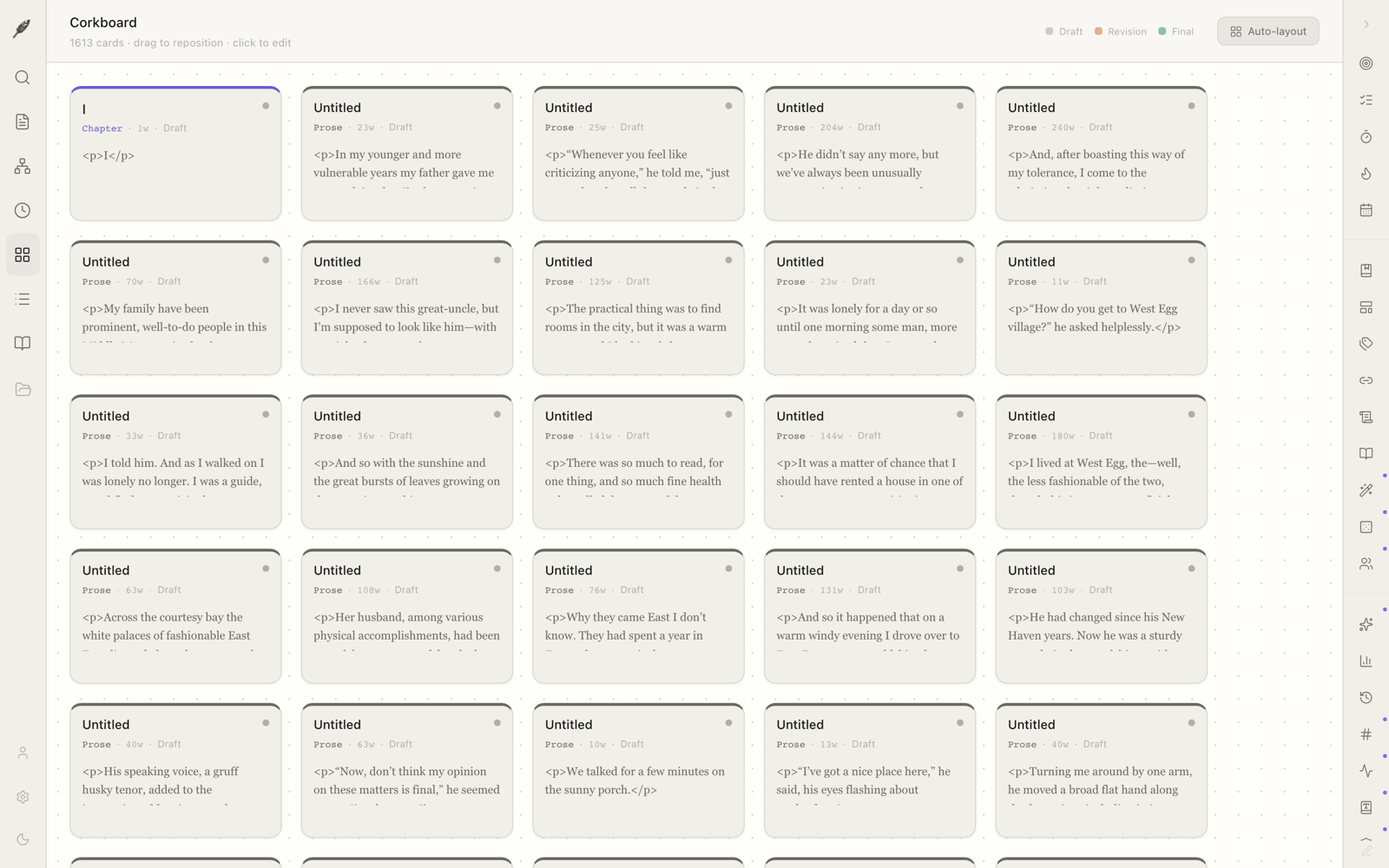
Synopsis cards on a virtual board. Each card is a chapter or scene. Drag, group, restructure — the manuscript follows. Auto-generated synopses, colour-coded by tag.
The binder ⌘5
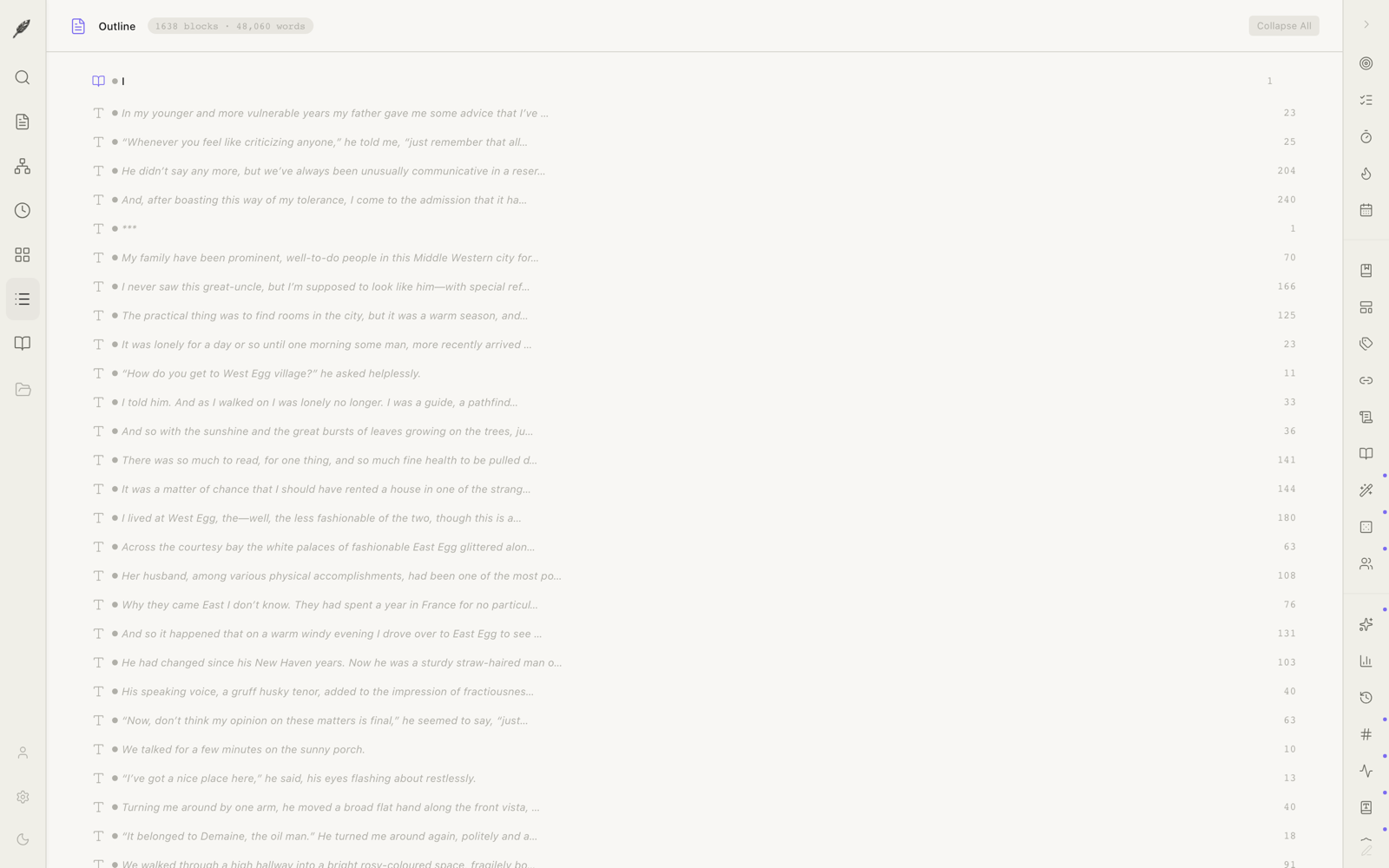
Every chapter and scene as a nested binder, with live word counts and drag-with-children. The skeleton of the manuscript, in one screen.
Command palette
Press ⌘K anywhere to open the command palette. From here you can run any action in Loomwork: create a new chapter, switch project, run an export, open a setting, jump to an entity. Fuzzy search; recent commands surface first.
Search
Press ⌘F to open search inside the current document, or ⌘⇧F for project-wide search. Loomwork search is more than substring match — it understands operators.
Search operators
tag:dream— blocks tagged “dream”type:scene— only scene blocksstatus:draft— blocks marked draftin:"part-one"— inside a specific chapter or partcharacter:mara— blocks where Mara appearsafter:2026-01— edited within a date range
Operators combine: type:scene status:draft character:mara finds every draft scene featuring Mara. Pro adds semantic search — vector embeddings let you find regret across the manuscript even when the word never appears.
Find and replace
Within search, press ⌥↵ to switch to replace mode. Replacements honour smart typography — replacing -- with — just works.
Import & export
Loomwork ships with eight export formats and a handful of import paths. Manuscript-quality formatting is built in; you should never need to open Word to fix a margin.
The eight export formats
- .docx — Word document. Manuscript-standard: 12-pt Courier, double-spaced, half-inch indents, scene breaks, headers, page numbers.
- .epub — Reflowable e-book. Cover, table of contents, chapter divisions, embedded fonts.
- .fountain — Plain-text screenplay. Industry-standard for screenwriting.
- .fdx — Final Draft format. Opens in Final Draft, Highland, Fade In, Trelby.
- .pdf — Print-ready PDF with manuscript title page.
- .md — Markdown. Front-matter as YAML; clean, portable.
- .html — Self-contained HTML with editorial typography embedded.
- .txt — Plain text. The lowest common denominator. Always works.
Importing
Loomwork imports DOCX, Markdown, plain text, Fountain, FDX, and HTML. Drag a file into the binder, or use File → Import. Smart Paste handles the smaller case — copy from anywhere, paste into Loomwork, and the typography is normalized in transit.
Manuscript prep
The pre-export checklist runs automatically. It surfaces missing front-matter, empty scenes, oversized paragraphs, orphaned widows, chapter numbers out of sequence, and dialogue blocks without speakers (for screenplays).

The research assistant
A Pro feature. Off by default.
The intelligence panel lives on the right of the page. Open it with ⌘.. It surfaces what Loomwork has noticed about your manuscript — characters, places, objects, threads, contradictions — without ever generating prose.

Entity extraction
Characters, places, objects, organizations — pulled from your prose as you write. Each gets a detail page with mention count, first appearance, and a per-chapter heat map.
Continuity hints
Loomwork remembers what you said. If chapter 2 calls the ring silver and chapter 11 calls it gold, the continuity tab flags it. False positives can be dismissed; the dismissal is remembered.
Thread tracking
Promises you made. Arcs you opened. Sub-plots that quietly decayed. Each thread has a status — active, dormant, resolved — and a timeline of mentions. Dormant threads surface a gentle nudge.
Character bible
Every character gets a generated profile: appearances, relationships, traits inferred from prose, dialogue samples. You edit it; Loomwork keeps it updated.
Style analysis
A Pro feature.
Style Sentinel
Sentinel learns your voice paragraph by paragraph. Once it has 5,000 words of training, it tells you, kindly, when a passage drifts — the line that sounds like someone else. Useful especially after a long break, or when collaborators contribute.
Syllabic flow
Measures the rhythm of your prose — syllable counts per sentence, sentence-length variance, paragraph cadence. Useful exactly where it matters: a sentence that runs too long, a paragraph too short.
Pacing & readability
A graph of scene-by-scene pace. A separate Flesch-Kincaid readability score per chapter. Both are tools, not verdicts.
Analytics & goals
Word goals
Daily, weekly, manuscript-wide. Loomwork shows progress as a quiet ring at the top of the page. Hit the daily goal and it pulses gently.
Streaks
Consecutive days with at least 200 words written. Skip a day, the streak resets — but a single “mulligan” per month is built in.
Session tracking
Every writing session is logged with start time, duration, words added, words deleted, and net words. Visible in the analytics tab; never sent anywhere.

Working tools
Sprints
25-minute focus sessions with flow detection. If you’re typing fluidly when the bell should ring, Loomwork waits a few seconds. The session ends with the sentence, not the clock.

Ambient room
Generative loops, not stock samples. Rain, cafe, fire, ocean, library. Mix two together; save the combination as a preset.
Snippets & templates
Repeated phrases, scene shells, character intros — saved once, summoned by abbreviation. ;loc for a location header. ;char for a character intro template.
Writing prompts
Two hundred form-aware prompts. Filter by project type. Save the ones that landed.
Track changes
Toggle with ⌘⇧T. While on, every edit is recorded as an insert or delete mark. Accept or reject individually, by paragraph, or in bulk. Useful for editor passes, beta-reader feedback, and self-revision.
Version history
Loomwork takes an automatic snapshot every hour during writing, plus a daily snapshot at midnight. Open the history panel (⌘⇧H) to view, diff, and restore any past state. Manual snapshots can be taken at any point and named — “before agent edits”, “final draft”, etc.
Open any two snapshots side-by-side. The diff is shown line-by-line: green for additions, red strike-through for deletions, neutral for unchanged. Restore the whole document, a chapter, or a single paragraph — the granularity is yours.
Caveat: snapshots live in the project folder under .loomwork/history/. Excluding that folder from your backup means losing the time machine.
Prose linter
A live, passive, opt-in linter that flags four classes of weak prose — passive voice, adverbs, filter words (saw, heard, felt, thought…), and over-long sentences. Flags appear as a coloured underline only; never a popup, never a redline that breaks the page.
Toggle from the right rail or with the command palette. Each class can be enabled or disabled independently. Caveat: the linter is a hint, not a verdict — passive voice is correct sometimes; adverbs are correct sometimes. Use your ear.
Graveyard
Every block you delete goes to a graveyard for 90 days before being permanently removed. Open the graveyard panel from the binder context menu. Restore by dragging a block back into place, or use Restore to put it where it came from.
Manuscript exports never include graveyard contents. The graveyard is local-only and is excluded from cloud sync.
Typewriter line mode
The active line stays vertically centred in the page; the surrounding text scrolls under your cursor like paper through a carriage. Easier on the eyes during long sessions and keeps your gaze in one place.
Toggle with ⌘⌥T. Off by default. Pairs especially well with focus mode.
Where-am-I status
A slim line at the foot of the editor that shows your current chapter, current scene, and the day’s word count. No panel; no badge; just orientation when you look down. Toggle in Settings → Editor.
Chapter word goals
Set a target word count on any chapter or part. A slim ring on the binder fills as you write toward it. Right-click a chapter and choose Set goal… — or type a number directly into the chapter’s metadata. The ring is gold when complete.
Story-structure templates
Start a new project from a structural template that pre-fills the binder with placeholder beats. Five are bundled: Save the Cat!, the Three-Act Structure, the Hero’s Journey, Story Grid (Coyne), and Freytag’s Pyramid. Pick one in the New Project dialog; rename and rewrite each beat as you go. The structure is a scaffold, not a contract.
Dialogue voice analysis
A Pro feature.
Loomwork builds a per-character voice fingerprint from each speaker’s dialogue: average sentence length, vocabulary register, contraction frequency, and a handful of stylometric tells. Drift detection flags chapters where a character’s voice has shifted noticeably from baseline — useful for spotting Maria starting to sound like David in chapter nine.
Open from the right rail when in the editor. Caveat: voice fingerprints need ~500 words of dialogue per character before drift detection is reliable.
PDF annotation
Drop a PDF into the research room. Highlight text, attach sticky notes, or pin a passage to a scene. Annotations live alongside the document and survive re-open. Search across annotated text together with the rest of the room.
Caveat: annotations are stored in Loomwork’s metadata, not embedded in the PDF. Export an annotated PDF to flatten them into the file itself.
Web clipper
Browser extensions for Chrome and Safari. One click sends a clean Reader-style copy of the current page — title, body, citation, source URL, capture date — into the research room of your most-recently-opened project. The extension is an unsigned developer build today; install via Load unpacked in Chrome and via Xcode in Safari.
Source for both extensions lives in the extensions/ folder of the project. Caveat: Loomwork must be running for the clipper to deliver a clip; otherwise it queues until it can.
Importing from Scrivener
Drag a .scriv folder onto Loomwork’s welcome screen or a project dock. The import preserves the binder structure, document titles, synopses, labels, and notes. RTF document content is converted to Markdown; basic formatting (bold, italic, lists) survives the trip.
Caveat: footnotes, comments inside RTF, and Scrivener’s custom inspector fields are listed in a warnings panel after import — they are not lost, but you may want to review them. Compile-only metadata (front matter, custom layouts) is also flagged.
KDP self-publish PDF
Export a typeset interior ready for Amazon KDP self-publishing. Choose a trim — 5x8, 5.5x8.5, or 6x9 — and Loomwork generates a PDF with the right gutters, margins, page numbers, chapter rule, and running heads. Open with ⌘E and pick KDP self-publish PDF.
Caveat: this is a typesetting starting point, not the final book. Run a proof through KDP’s previewer before ordering.
Cloud sync
A Pro feature.
Optional and encrypted. Pro users can sign in with a magic link to enable cloud sync between Macs. The sync layer is end-to-end encrypted; we never see plaintext on our servers. Offline always works — sync resumes when you reconnect.
Settings
Open with ⌘,. Five tabs:
- Editor — smart typography, focus mode behaviour, font size, line spacing.
- Keyboard — rebind any shortcut.
- Project — project type, target word count, manuscript metadata.
- Appearance — light, dark, sepia.
- Pro — sign in, manage subscription, configure cloud sync.
Keyboard shortcuts
The complete list. All can be rebound in Settings → Keyboard.
- Command palette — ⌘K
- Switch room 1–5 — ⌘1 – ⌘5
- Slash menu —
/ - Wiki-link —
[[ - Split block — ⌘↵
- Search current document — ⌘F
- Search project — ⌘⇧F
- Toggle navigation rail — ⌘\
- Toggle context panel — ⌘.
- Focus mode — ⌘.
- Zen mode — ⌘⇧.
- Track changes — ⌘⇧T
- Add comment — ⌘⇧M
- Version history — ⌘⇧H
- Settings — ⌘,
- Sprint timer — ⌘⇧S
- Read aloud — ⌘⇧R
- Export — ⌘E
Project types
Each of the ten project types ships with its own templates, structure, and export defaults. You can change project type later (Settings → Project) but block types and exports adapt.
- Novel — parts, chapters, scenes. POV tagging. .docx + .epub default.
- Screenplay — sluglines, action, dialogue, transitions. .fdx + .fountain default.
- Short story — single-document. Submission format default.
- Poetry — stanza blocks, line-break preservation. Chapbook EPUB default.
- Memoir — era markers, photo blocks, timeline-friendly.
- Essay — argument blocks, footnote support, long-read flow.
- Journalism — lede / nut-graf flow, source tracker, datelines.
- Blog — SEO front-matter, Markdown export, headless-CMS friendly.
- Technical — code blocks, tables, API documentation flow.
- General — open canvas, no structure imposed.
Frequently asked
Where is my manuscript stored?
In a folder of plain Markdown files, by default at ~/Documents/Loomwork/<your project>. You can move it, copy it, back it up, encrypt it — like any document. Open the files in TextEdit if you want.
Does Loomwork work offline?
Yes. The editor, all five rooms, every export format, the sprint timer, ambient sounds, and prose linter all work offline. You only need internet for Pro intelligence and read-aloud.
Can I import from Scrivener / Word / Markdown?
Word (.docx), Markdown (.md), plain text, Fountain, Final Draft (.fdx), and HTML import directly. Scrivener export is supported via the Compile-to-DOCX path; we’re working on a native .scriv importer for a future release.
Is my writing used to train AI?
No. When you use Pro intelligence, your text is sent through a stateless proxy — nothing is stored, logged, or used for training. The downstream model processes the request and forgets it.
What if I cancel Pro?
The editor keeps working — you only lose the intelligence stack. Your work, settings, and project files stay exactly where they are: locally, untouched.
Windows? Linux? iPad?
macOS Apple Silicon today. Windows and Linux builds are next on the roadmap. iPad — eventually, but not yet. We’d rather one platform feel native than four feel half-finished.
How do I report a bug or request a feature?
Email hello@loomwork.app. We read every message and respond personally.
Comments
Select any text and press ⌘⇧M to add a comment. Inline comments thread; block-level comments stack in the right panel. Replies, resolutions, and a comment-only filter for the page.